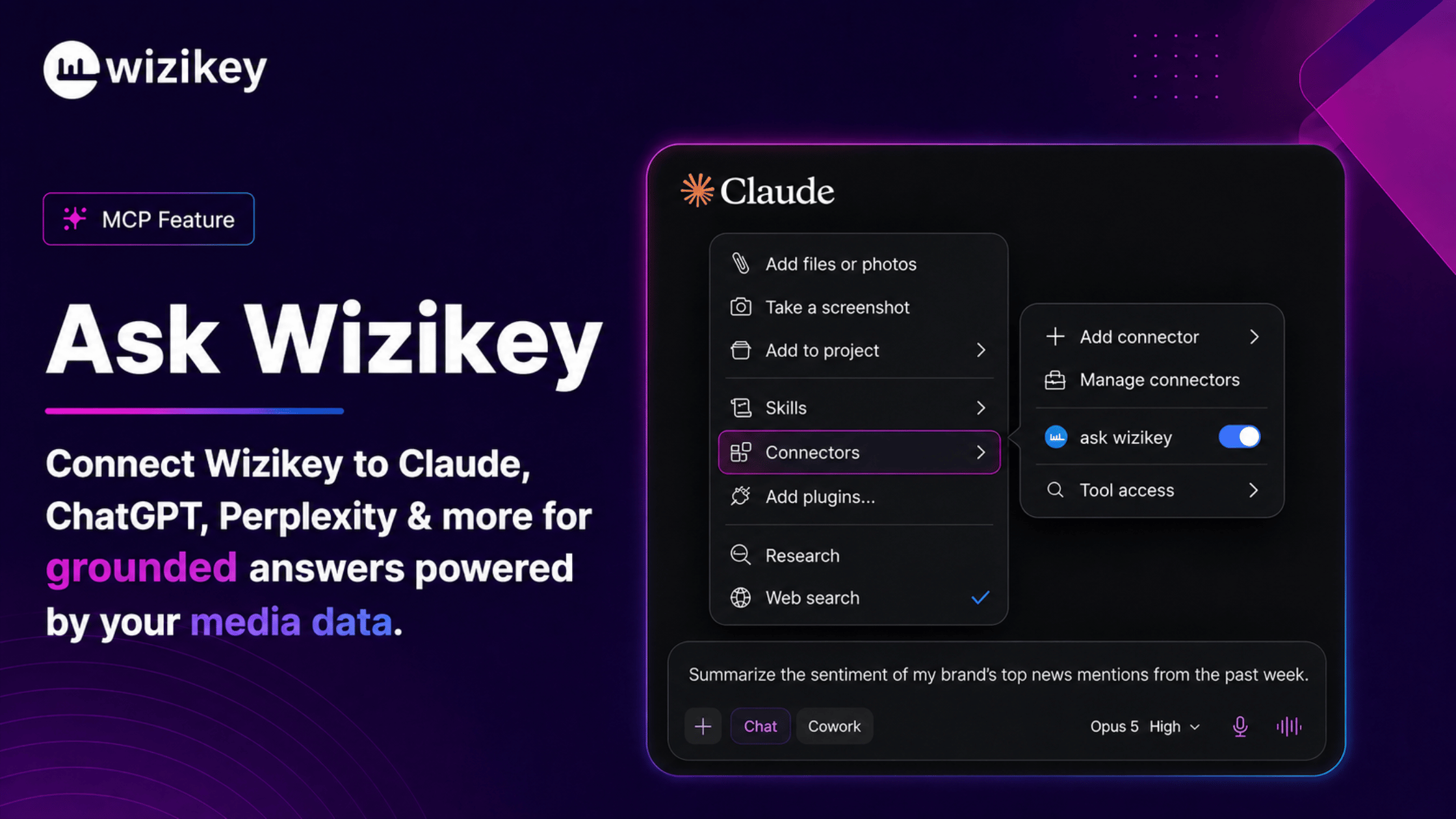
Ask Wizikey MCP (Model Context Protocol) integration with Claude allows you to access news articles, analytics, and personalized data directly from your Wizikey workspace within your AI conversations. This guide will walk you through the entire connection process from start to finish.
Prerequisites
Before you begin, ensure you have:
- A Claude Pro subscription (required to use MCP integrations)
- An active Wizikey account with access to your workspace
- Access to your email to receive the authentication token
If you don’t have a Claude Pro subscription, please reach out to the Wizikey team at csm@wizikey.com.
Step 1: Generate Your MCP URL
Start by generating a unique URL that will connect Claude to your Wizikey account.
- Log into your Wizikey account
- Navigate to the MCP Platform connection settings
- Click on the “Generate URL Now” button
- A unique URL will be generated and automatically sent to your registered email
- Copy this URL – you’ll need it in the next step
The generated URL will look something like: https://85df8d63f017.ngrok-free.app/mcp...
Note: The URL is timestamped (you’ll see something like “Generated On 22 Aug 2025 08:20pm”), so keep track of when it was created.
Step 2: Add Wizikey as a Custom Connector in Claude
Now you’ll add Wizikey as a custom integration in Claude.
- Open Claude in your browser or desktop app
- Navigate to Settings → Search/Tools Option (or click on “Manage Connector” if available)
- Look for the option to “Add Custom Connector”
- Paste the URL you generated in Step 1
- Give it a name of your choice, such as “Wizikey MCP” or “Ask Wizikey”
- Save the connector
Step 3: Check Your Connection Status
After adding the connector, verify that it’s been set up correctly.
- Return to your Claude chat interface
- Type the following prompt exactly as shown: “Ask Wizikey: Check Login Status”
- Claude will use the Wizikey connector to check your authentication status
- You’ll receive a response with a clickable URL for authorization
Step 4: Generate Your Client Token
Click on the URL provided by Claude to complete the authentication process.
- Click the URL shared by Claude in the previous step
- You’ll be redirected to a Wizikey authentication page
- The page will display: “Client Token” with a field labeled “Enter Token”
- Check your email for the client token that was sent when you generated the MCP URL
- If you can’t find the token, click the “Resend” link on the token page
Tip: The email will contain the exact token you need to enter. Copy it carefully to avoid any errors.
Step 5: Authorize Access
Complete the authorization by entering your token.
- Paste the client token into the “Enter Token” field
- Click the “Authorize Access” button
- Wait for the confirmation screen
Step 6: Confirmation
Once authorization is successful, you’ll see a confirmation screen.
The screen will display:
- ✓ A green checkmark icon
- “You are successfully connected” message
- Instructions: “You can now open Claude to continue”
Congratulations! Your Wizikey MCP is now connected to Claude.
How to Use Wizikey MCP in Claude
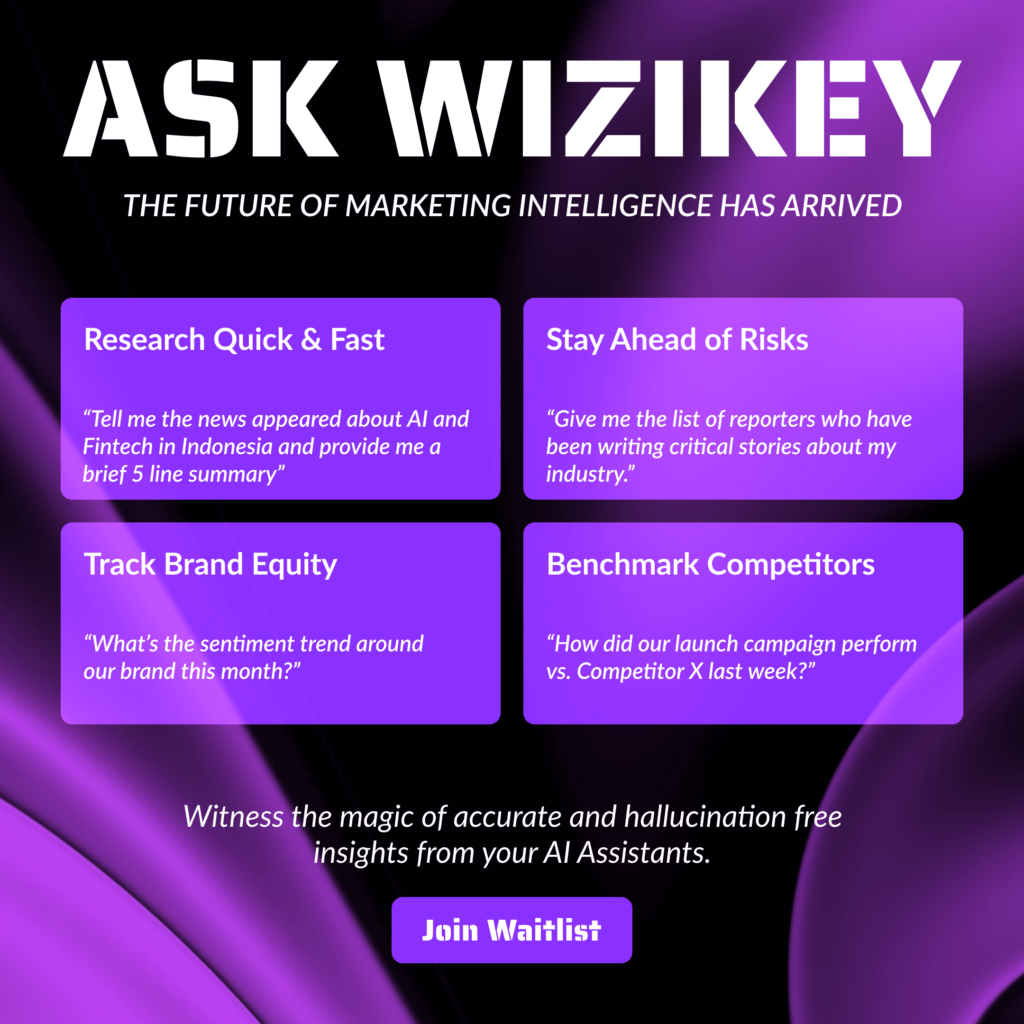
Now that you’re connected, you can use any prompt to ask questions and retrieve information from Wizikey. Here are some examples:
- “Show me recent news articles about [your brand]”
- “Get news from the last 30 days”
- “What’s the news count for our workspace brands?”
- “Fetch articles mentioning [specific topic]”
- “Show me news from our primary brand”
Claude will automatically use the Wizikey connector to fetch the requested information from your workspace.
Important Notes
⚠️ If you refresh the URL on the Wizikey connection page, you’ll need to redo all the steps above. The URL and token are session-specific.
💡 Troubleshooting:
- If the connection fails, verify that you’re using Claude Pro
- Make sure you copied the complete URL without any extra spaces
- Check that the token was entered correctly
- If issues persist, contact Wizikey support at csm@wizikey.com
📚 For more detailed information, click on the “Click here” link mentioned in the Wizikey connection interface to checkout the complete documentation.
What’s Next?
With Wizikey MCP connected to Claude, you now have powerful access to:
- Real-time news monitoring from your workspace
- Brand-specific article retrieval
- Analytics and insights
- Project-specific data access
Start exploring your Wizikey data directly through conversational AI and streamline your media monitoring workflow!
Need Help?
If you encounter any issues during setup or have questions about using the Ask Wizikey integration, reach out to the Wizikey team at csm@wizikey.com.