Knowing how to set up Wizikey Alerts can help your team stay informed without constantly checking the monitoring dashboard. Brand news can break during a meeting, over the weekend or in the middle of a launch. By the time someone checks the dashboard, the conversation may have already moved ahead.
Wizikey Alerts brings relevant news directly to the right people. Teams can choose the schedule, format, recipients and delivery channel based on how quickly they need the information.
The Alert Problem: Too Much News, Too Little Signal
Picture a comms lead, let’s call her Priya, heading into a big product launch week. She’s tracking her brand’s coverage, her competitors’ moves, and industry news, all at once. Without a system, that looks like:
- Checking manually, all day: refreshing the monitoring dashboard every hour just in case something moved.
- Missing quiet-hours coverage: a competitor story breaks at 11 PM and she doesn’t see it till the next morning.
- One-size-fits-all updates: her leadership team gets buried in the same raw feed she uses, when what they actually want is a Friday summary.
- No way to catch a sudden spike: if mentions of her brand suddenly surge (good or bad), she has no early warning; she just finds out eventually.
Every one of these costs her something: time, a missed opportunity to respond, or a leadership team that’s either overwhelmed or under-informed.
The Two Types of Wizikey Alerts
Before diving in, it helps to know that Wizikey splits alerts into two fundamentally different categories, each solving a different problem.
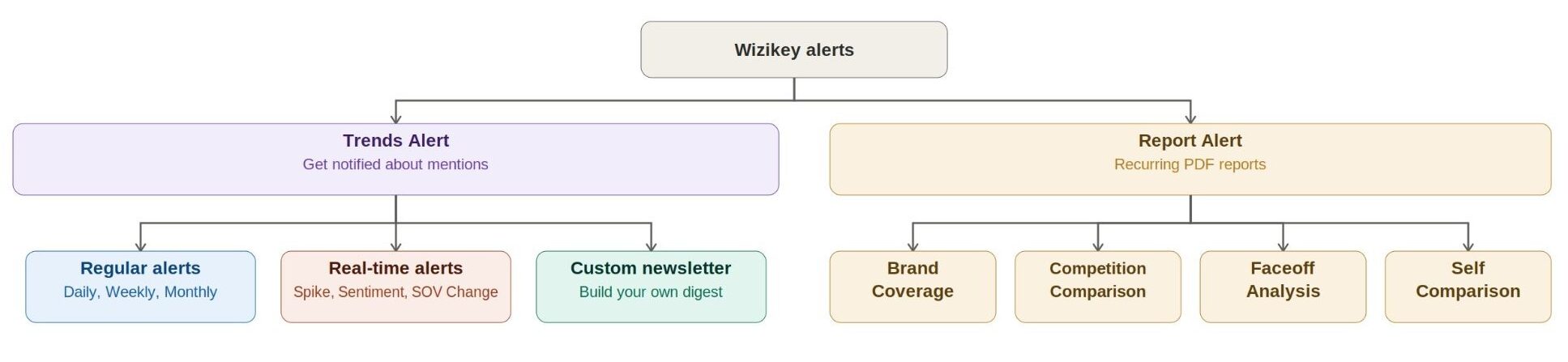
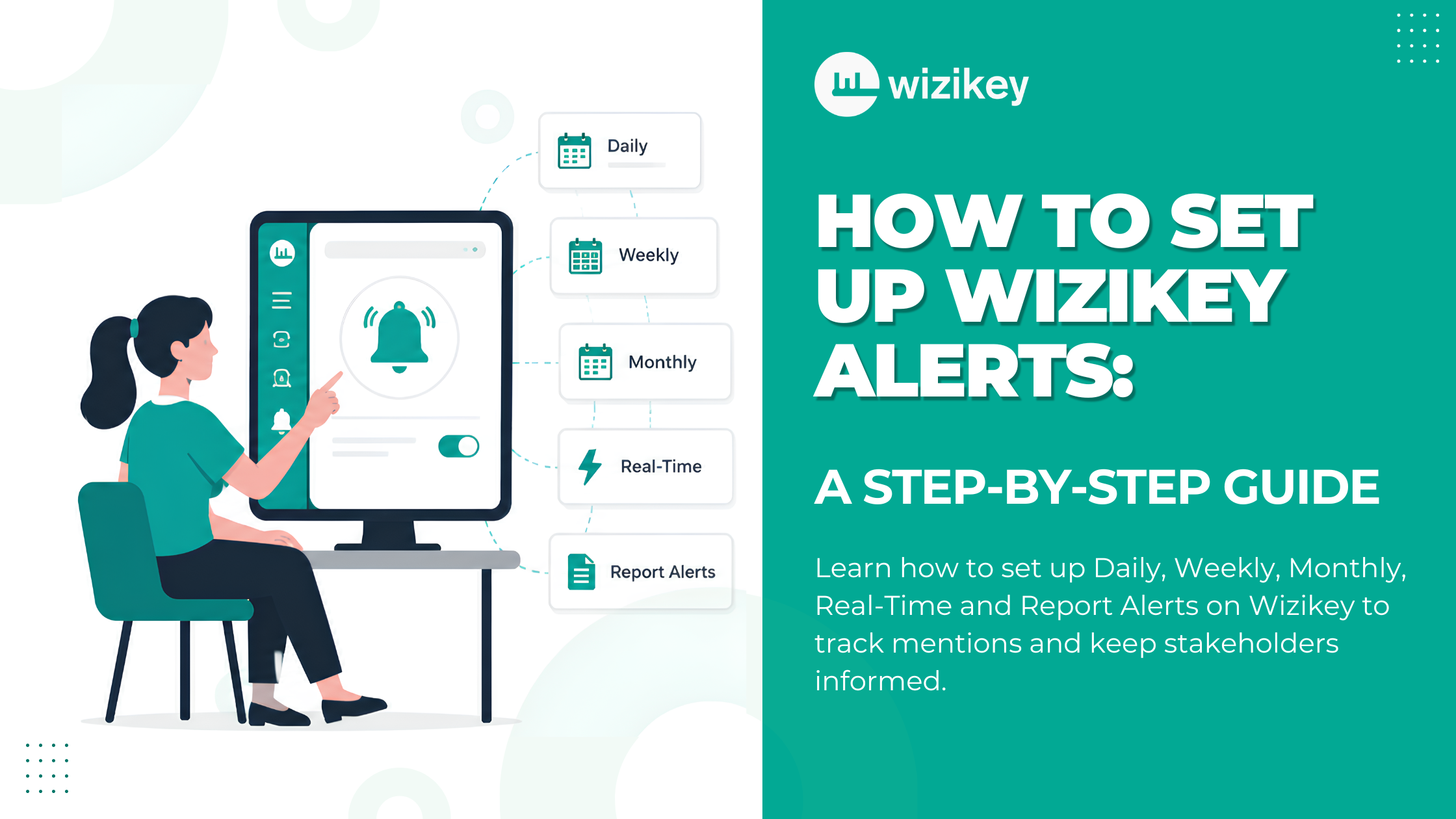
- Trends Alert: for staying on top of individual mentions as they happen or on a schedule. This further splits into three types: Regular alerts (Daily, Weekly, Monthly, running at fixed times), Real-time alerts (Spike, Sentiment, or SOV Change, triggered the moment a condition is met, not on a timer), and a Custom Newsletter (a fully build-your-own digest).
- Report Alert: for when what you need isn’t a feed of mentions, but a polished, recurring report, delivered as a PDF, built from one of four preset formats: Brand Coverage, Competition Comparison, Faceoff Analysis, or Self Comparison.
Trends Alert keeps Priya close to the day-to-day noise; Report Alert gives her something clean to hand off. She ends up needing both.
How to Set Up Wizikey Alerts
Wizikey Alerts lets Priya create different alerts for different needs. She can receive a daily digest for herself and a weekly summary for leadership. She can also schedule a monthly competitive report or create a real-time alert for sudden mention spikes. For stakeholders, she can automate a polished recurring report, all from the same place, each tailored to who’s reading it and when they need it.
This guide explains how to set up Wizikey Alerts for daily monitoring, leadership updates, competitive reporting and real-time changes.
Step 1 · Her Everyday Digest (Daily Alert)
Priya’s baseline need is simple: know what’s out there about her brand every day, without babysitting the dashboard.
She heads to Alerts in the left navigation and lands on Your Alerts, the home for everything she’s set up, listed by project, alert name, and schedule. From here, she clicks Add New Alert and picks Trends Alert, since she wants brand and competitor mentions, not a recurring report.
On the template screen, she picks Daily Alert, built for exactly this, and continues into the setup form. This is where the Daily Alert shows its flexibility:
- First, Priya names the alert and chooses the relevant project.
- Next, she adds the email recipients and selects WhatsApp if she also wants mobile updates.
- Under “Receive alert from following media,” she chooses News Mentions and selects the relevant alert category.
- In the timing section, Priya can add multiple delivery slots across the day.
- Finally, she selects the time zone, news sources and subject line.
Once it’s filled in, she clicks Preview, and sees exactly what the email will look like before it’s real: the subject line, the mention count, and the actual headlines with sources and snippets. Happy with it, she hits Save, and she’s back on Your Alerts, where her new Daily Alert now sits active in the list.
Step 2 · The Leadership Update (Weekly Alert)
Her leadership team doesn’t want Priya’s daily detail; they want the headline version, once a week.
So she repeats the same Add New Alert → Trends Alert path, but this time picks Weekly Alert from the templates. Wizikey keeps the Weekly Alert form lighter than the Daily Alert form: she names it, adds her leadership team’s emails as recipients, and sets a single time slot, say, 4 PM every Friday. There’s no juggling multiple slots or a custom subject line here; Weekly Alerts provide a clean, predictable update, not a flexible feed. She previews it, confirms the format, and saves, and now her Friday update runs itself.
Step 3 · The Competitive Report (Monthly Alert)
Once a month, Priya also needs a step back, not just her brand’s mentions, but how she’s tracking against competitors.
For this, she sets up a Monthly Alert. Like the Weekly one, it’s simple by design: one fixed schedule (Wizikey defaults this to 11 AM on the first working day of the month), a single time slot, and email as the only delivery channel. She adds her wider team as recipients, names it clearly, “Competition Comparison Report”, and saves it. It’s one less thing she has to remember to run herself.
Step 4 · Launch-Week Monitoring (Real-Time / Spike Alert)
Launch week is different. Priya doesn’t want to wait for a scheduled digest; she wants to know the moment something changes.
This is where a Real-Time Alert works differently from the others. Instead of choosing a schedule, she sets Choose Alert Type to “As it happens” and picks an Alert Criteria, in her case, Spike in Mentions. Instead of a time slot, she sets a threshold: a slider lets her define how big a jump counts as a spike, say, when today’s mention volume is 2x the average of the last seven days. She can select Online, Print, or both as her source, and choose whether it lands by email, WhatsApp, or both.
There’s no Preview step here in quite the same sense; Once Priya saves the alert, Wizikey monitors the mentions in the background until her mentions cross that threshold. The moment they do, she’s the first to know, not the last.
Step 5 · The Board-Ready Report (Report Alert)
Launch week wraps, and now Priya needs something different again, not a feed for herself, but a clean, recurring report she can hand to her stakeholders without doing any extra work.
This is where she steps outside Trends Alert entirely and creates a Report Alert instead. Wizikey guides users through clear stages instead of presenting one long form:
- Choose Report Type: she picks from four preset formats: Brand Coverage (media performance over a time frame), Competition Comparison (her brand against competitors), Faceoff Analysis (two brands, head-to-head), or Self Comparison (her own brand across two time ranges). Each has a Sample link so she knows what she’s picking before committing. She goes with Brand Coverage.
- Select Project: she chooses her project, brand, and country, and sets a date range. If she’d already saved a View with the filters she wants, she could pick that directly instead of setting everything again.
- Select Slides: she checks off exactly what should go into the report: an Overall Summary, Top Articles by Article Reach, Online Summary, Sentiment Analysis, and a few platform-specific sections. A Wizikey Recommended shortcut is there if she’d rather not pick manually.
- Select Recipients: she writes a Subject Line for Email, sets the Interval (Weekly, in her case), picks the Time it should go out, and chooses her recipients from the list. The report arrives as a PDF file.
She clicks Create Report, and just like every other alert, it lands her back on Your Alerts; her board update now runs itself, every week, without her opening a single spreadsheet.
How to Edit a Wizikey Alert
Priya’s needs shift, maybe leadership wants the weekly update on Mondays instead of Fridays, or she wants to loosen her spike threshold after a slow launch week. She doesn’t need to rebuild anything: back on Your Alerts, every alert has an edit icon that opens the same setup form, pre-filled with her existing settings.
The one difference worth knowing: when she’s creating a brand-new alert, the flow ends with Preview, then Save; she sees the email before it’s live. When she’s editing something that already exists, there’s no preview step; she simply makes her changes and clicks Save Changes, and it updates immediately.
Everything, One Place
Back on Your Alerts, Priya can see her complete setup in one place. This includes her Daily digest, Weekly leadership update, Monthly competitor report, Real-Time spike alert and recurring Brand Coverage report. Each alert displays its schedule and status. She can also pause an alert using a simple toggle. Nothing is one-size-fits-all; each alert exists because a different moment, or a different person, needed the news delivered a different way.
That’s the real value of Wizikey Alerts: it’s not one feed everyone has to adapt to; it’s a set of alerts that adapt to how, and when, each person actually needs to know.
Once you know how to set up Wizikey Alerts, the right update reaches the right person without anyone repeatedly checking the dashboard.
FAQs
What alert types does Wizikey support?
Two broad categories: Trends Alert and Report Alert. Trends Alert covers Regular alerts (Daily, Weekly, Monthly), Real-time alerts (Spike, Sentiment, SOV Change), and a Custom Newsletter, alongside preset templates like CXO Daily, Negative Mentions, and social media mention alerts. Report Alert covers four preset report formats: Brand Coverage, Competition Comparison, Faceoff Analysis, and Self Comparison, delivered as recurring PDFs.
What’s the difference between a Trends Alert and a Report Alert?
A Trends Alert notifies you about individual mentions, either on a schedule or in real time. A Report Alert instead compiles a polished, recurring report, built from preset slides, and delivers it as a PDF on the interval you choose.
Can I send alerts to more than one person?
Yes. Alerts can go to multiple email recipients, and separately to WhatsApp recipients, so different stakeholders can get the same or different alerts.
What’s the difference between a regular alert and a real-time alert?
Regular alerts (Daily, Weekly, Monthly) send at fixed times you choose. Real-time alerts don’t run on a schedule at all; they trigger the moment a condition is met, like a spike in mention volume crossing a threshold you set.
Can I edit an alert after I’ve created it?
Yes, from Your Alerts, the edit icon opens the same setup form pre-filled with your existing configuration. The only difference from creating a new alert is that edits save immediately via Save Changes, without a preview step.
Do all alert types let me customize the subject line and timing as freely as Daily Alerts?
No. Daily Alerts support multiple time slots and a custom subject line; Weekly and Monthly Alerts are intentionally simpler, with a single fixed time slot and a default subject line.