Part 2 of 2 – this is the hands-on walkthrough. New to Engage or want the bigger picture first? Start with Part 1: What Is Wizikey Engage?
This guide shows you how to use Wizikey Engage across a real PR outreach campaign, from reporter search to campaign analytics.
It’s announcement week. Your fintech startup has just closed its Series A, and landing the coverage is on you. You’ve got a press release, a roster of investors to name, founder headshots somewhere in a shared drive, and a deadline. This guide follows that one announcement from start to finish showing exactly how you’d run it inside Wizikey Engage, from finding the right reporters to measuring what worked, as a single connected workflow. Each feature appears at the moment you would actually use it.
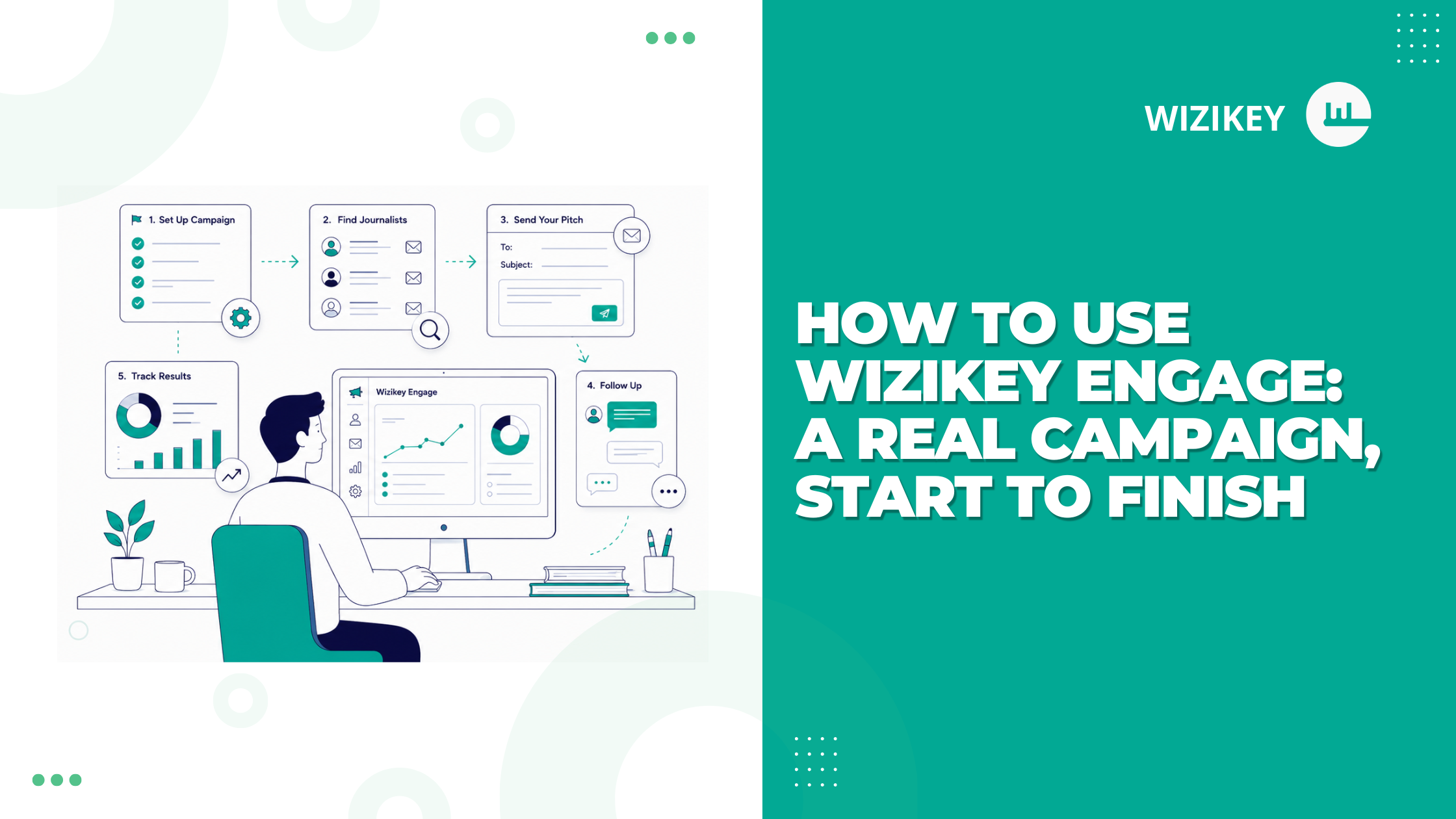
The journey: find reporters → get your sender ready → stock your assets → send the campaign → field the replies → measure results.
Step 1 · Find the right journalists (Search Reporters)
- You start in Search Reporters, because the fastest way to sink an announcement is to pitch the wrong people.
- The screen asks you to pick a target country first – that’s how it surfaces the most relevant reporters – so you choose your market and open the Filters panel.
- You set Influencer Type to Reporter, since you want written coverage (Podcaster is there for when you’re chasing audio interviews instead).
- You filter Beats to Finance so you only see journalists who actually cover funding, set Reporters Location to your region, and use Date Range to surface reporters who’ve written about raises recently – someone who covered a Series A last month is far likelier to bite than someone who hasn’t touched the topic in two years.
- From there you refine as much as you like:
- All Emails lets you choose between a reporter’s Personal Email and the Publication Email, or Exclude Guest Writers so you only reach staff.
- Publications searches by outlet name or by traffic, to prioritise reach or a niche audience.
- Designation targets people by role – an Editor who greenlights stories versus a Correspondent who writes them – and Reporters Language opens up multilingual outreach.
- If you already know exactly who you want, Search In Name jumps straight to them; Select Pitches pulls back reporters from past campaigns; and Marked Reporter filters by the people you’ve tagged – Notes Added, Blocked, or Exclude Tagged & Blocked to keep your list clean.
- Once you’ve got a tight set, you save it under My List as “Series A – Fintech Reporters.” That list is now reusable: when your next milestone lands, it’s waiting for you.
Step 2 · Get your sending account ready (Mail Box)
- Before a single pitch goes out, you make sure it’ll come from the right place.
- In Mail Box you’ll find your Email Accounts – the sender addresses Engage uses.
- You hit Connect New Account to add your work email, so reporters see a name they recognise rather than a generic platform address.
- Each account lets you set a Daily Limit and an Hourly Limit – caps on how many emails it sends in a given window, which keeps your domain healthy and your messages out of spam – plus a simple toggle to switch a sender on or off (and you can edit or remove one anytime).
- You confirm your company address is connected and active, and you’re ready to send.
Step 3 · Upload your pitch documents (BrandBox)
- Reporters covering a funding round will almost always ask for the release, a founder headshot, the logo, maybe a data sheet.
- In Engage there’s a rule worth knowing up front: a file has to live in BrandBox before you can attach it to a pitch.
- So you do this now, not in the scramble later.
- You upload everything the story might need – the press release, founder headshots, logo pack, and supporting documents – and because BrandBox holds images, videos, PDFs and docs alike, your whole kit sits in one place.
- When the requests come in mid-campaign, you’ll find any file in seconds using the file-name search, the file-type filter, and the A–Z sort.
Step 4 · Build and send the campaign (Campaigns)
- Now you bring it together in Campaigns.
- Creating one is a quick four-step flow:
- Create Campaign by naming it “Series A Announcement,”
- Enter Pitch Details to write your pitch and attach the release and headshots you parked in BrandBox,
- Select Reporters to pull in your “Series A – Fintech Reporters” list,
- then Preview & Submit to review everything and send.
- Thanks to the SMTP setup, the pitch goes out from your Mail Box account – so replies come straight back to you, and your name builds familiarity with every send.
- Once it’s live, the Campaigns page becomes your dashboard:
- An Overall Summary across all your outreach shows your totals – Campaigns, Pitches, Journalists Reached, Emails Open, and Journalist Responded.
- Your Series A card tracks its own Pitches, Emails Sent, and Replied counts.
- You can filter the view by Date Range, Status, or Sort By, open a Campaign report for the full breakdown, and before you ever add a reporter to a follow-up – check Conversation History so you’re not pitching someone for the fourth time this month.
Step 5 · Read & Respond to pitches (Inbox)
- Within a day, the replies start.
- The Inbox keeps them all in one place, split across two tabs:
- Mails, for everything that hits your dedicated Wizikey address,
- Campaign Replies, for responses tied directly to your pitches.
- Your eight interested reporters – asking about valuation, investors, and timing – show up under Campaign Replies, each linked to the pitch that prompted it.
- You search by email address, filter the view, and answer each one in context, without bouncing between your personal inbox and a shared account.
- Reporters work on deadlines, so the speed matters.
Step 6 · See what landed (Analytics)
- Once the dust settles, you head to Analytics to learn from the round.
- The Overview tab opens with your Recent Pitch – your latest send, its Open Rate, and a link to Go To Pitch Report.
- Below it, Highlights of all Campaigns shows your Pitches done, Emails sent, Total opens, and Open rate for the period you pick, each with a little trend arrow telling you whether you’re up or down on last time.
- The Overall Campaign Performance chart plots that activity over time, and you can flip it between Pitches, Emails, and Opens.
- For the detail, the Pitches tab lists every pitch in a table – Date, Pitches, Emails Sent, Open Rate, and Replies – so you can compare individual sends side by side.
- Reading your Series A numbers, you spot the pattern: a strong open rate but fewer replies than you’d hoped.
- The takeaway is clear. Your subject line is working, but the pitch body needs sharpening before the next milestone.
- You note your typical open and reply rates as a benchmark, so the next campaign has a bar to clear.
One Announcement, One Workflow
Step back and look at what just happened. A single Series A announcement took you through the whole of Engage – finding reporters in Search Reporters, setting up your sender in Mail Box, prepping assets in BrandBox, sending through Campaigns, fielding replies in the Inbox, and measuring it all in Analytics – without once leaving the platform or opening a spreadsheet. That’s the point of Engage: every stage feeds the next, so each announcement you run is faster, better targeted, and easier to learn from than the last.
Want the why behind the workflow? Revisit Part 1: What Is Wizikey Engage? Once you know how to use Wizikey Engage this way, every new campaign becomes easier to repeat, improve, and measure.
FAQs
How does journalist search work?
Filter a verified reporter database by influencer type, beat, location, language, designation, publication, and recent coverage, then save the result as a reusable list.
Can I send pitches from my own email?
Yes, connect your address in Mail Box, and the SMTP setup sends pitches from your own account, so replies hit your inbox and journalists recognise your name.
What is a media list?
A saved, reusable group of journalists (under “My List”), like the “Series A Fintech Reporters” list used in this guide, that you can pull up for any relevant campaign.
How does campaign analytics work?
Analytics has an Overview tab (your recent pitch, plus pitches done, emails sent, total opens, and open rate for a chosen period) and a Pitches tab listing every pitch with its emails sent, open rate, and replies – so you can compare campaigns and refine your targeting and story angles.
What is BrandBox?
A central repository for press releases, media kits, brand assets, images, and videos. Files must be uploaded there before they can be attached to pitches, and search, filter, and sort help you find any asset fast.
How do I manage reporter conversations?
The Inbox centralizes replies across its Mails and Campaign Replies tabs, while Conversation History in Campaigns shows your full timeline with each journalist – so every new pitch builds on the last.